


Let your AI assistant set it up. Connect the Super MCP to Claude, ChatGPT or another assistant and paste this prompt:
Use the Super MCP to set a call to action button for the [language] version of my Super site [site name].
Follow the guide at https://docs.super.so/help/super-how-tos/custom-cta-button-for-each-language
Use the label [button text] and the link [page or URL].
Then show me a preview of the [language] homepage.
Set a unique Call to Action (CTA) button for each language version of your site to provide localized button text and destinations.
If your site uses multiple languages, you can now set a different Call to Action (CTA) button for each language.
Previously, Super allowed you to customize navigation menu items for each language, but the CTA button was shared across all languages. With this update, each language can have its own CTA button, making it easier to direct visitors to language-specific pages or actions.
How to set a language-specific CTA button
- Open your site in the Super dashboard.
- Go to Languages.
- Select the language you want to edit.
- In the language settings, configure the Call to Action button.
- Save your changes.
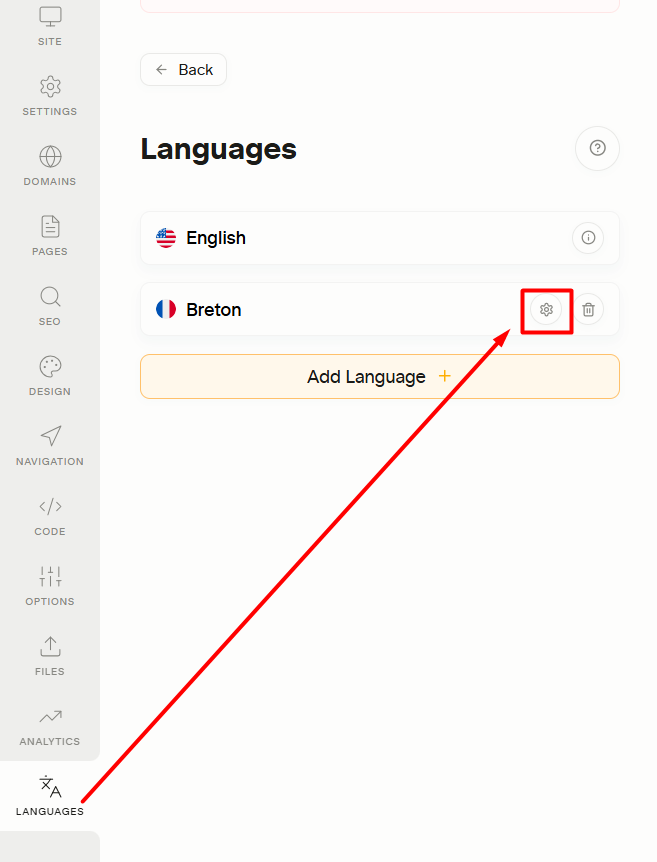
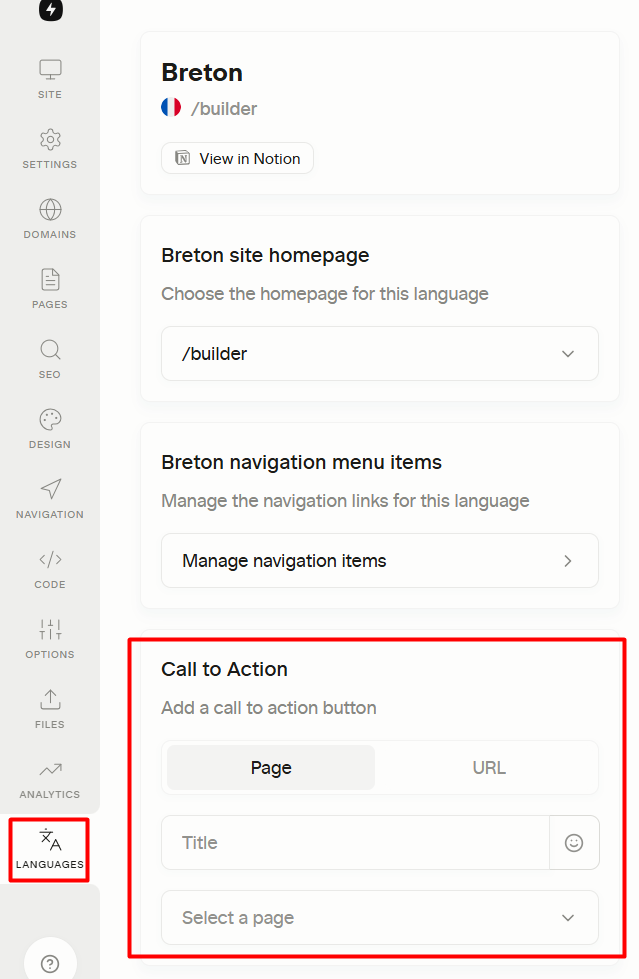
Repeat these steps for each language if you'd like to use different CTA buttons.
Why use language-specific CTA buttons?
Using a unique CTA button for each language helps create a more localized experience for your visitors. For example, you can:
- Link to a translated contact or pricing page.
- Use button text in the selected language.
- Send visitors to different destinations based on their language.
Each language's CTA button is configured independently, allowing you to tailor the navigation experience for every version of your site.