


Let your AI assistant do it. Connect the Super MCP to Claude, ChatGPT or another assistant and paste this prompt:
Use the Super MCP to find old pages that no longer exist in Notion on my Super site [site name].
Follow the guide at https://docs.super.so/help/super-how-tos/how-to-clean-your-site-of-random-pages
List them first and remove them only after I confirm.
If you are developing your site an end up with extra old pages, clean up by removing all the old pages and have Super detect the new ones.
If you are going through multiple iterations of large structural changes to your Notion pages be adding, moving and removing pages in Notion, sometimes you can end up with lots of pages in your site that are no longer valid.
This is because Super has detected a set of pages and added them to the site, then these pages have changed significantly in Notion, and Super has added the new pages. Super does not remove pages from the page list automatically to preserve the integrity of the site structure when things move around in Notion.
If you are developing your site and you end up with a range of extra old pages, the best way to clean up is to remove all the old pages and have Super detect the new ones again.
Note that removing pages from Super will not affect your Notion pages, but it will remove any custom code or custom SEO settings for those removed pages.
- Go to the Pages section of your Site dashboard
- Click on the three dots next to the page you want to remove
- Select remove pages - this will remove this page and all its subpages.
- Click ok in the confirmation message
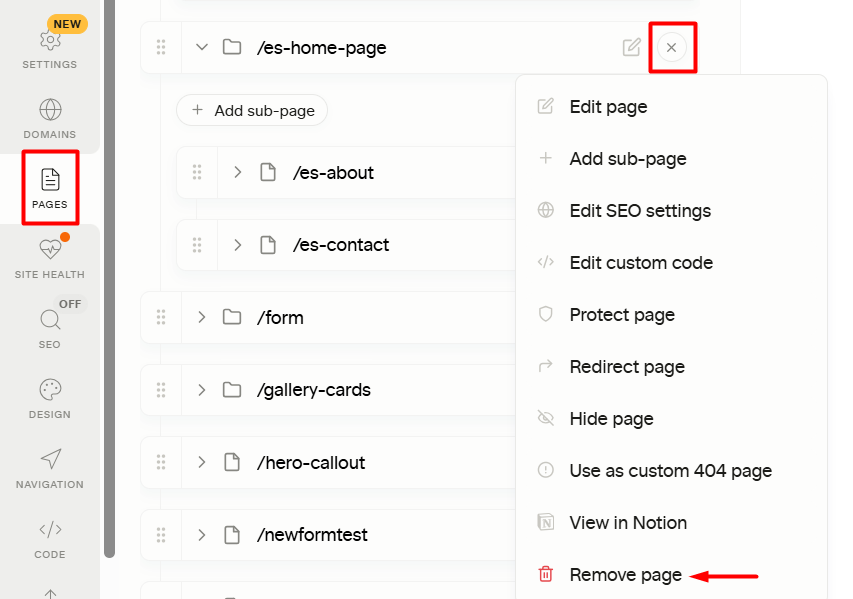
If you select remove pages on the home page, the home page will remain but all subpages will be removed.
Many pages to remove? Turn on Select next to Add page, tick the pages (or search and tick Select all), then click Remove in the bar above the list. If the old pages should send visitors somewhere instead, use Redirect in the same bar, see  How to Bulk Redirect Pages.