


Let your AI assistant walk you through it. Connect the Super MCP to Claude, ChatGPT or another assistant and paste this prompt:
Use the Super MCP to help me show responses from my Tally form [form name] on my Super site [site name].
Read https://docs.super.so/help/super-how-tos/how-to-send-tally-form-responses-to-a-notion-database and explain it for my site step by step.
If a step has to be done in Notion, do it with the Notion connector or tell me exactly what to change.
Learn how to connect a Tally form to a Notion database when using Super, allowing form responses to automatically sync into your database and dynamically appear on your site.
If you're using Super and would like to add a Tally form while having all responses automatically added into a Notion database, this setup is possible through Tally’s native Notion integration.
Once connected, every submission from your Tally form will automatically create a new item inside your selected Notion database. If that database is connected to your Super site, the content can also dynamically appear on your website depending on your database filters and page setup.
Steps to Integrate Tally to Notion:
- Log in to Tally
- Open the form you want to connect
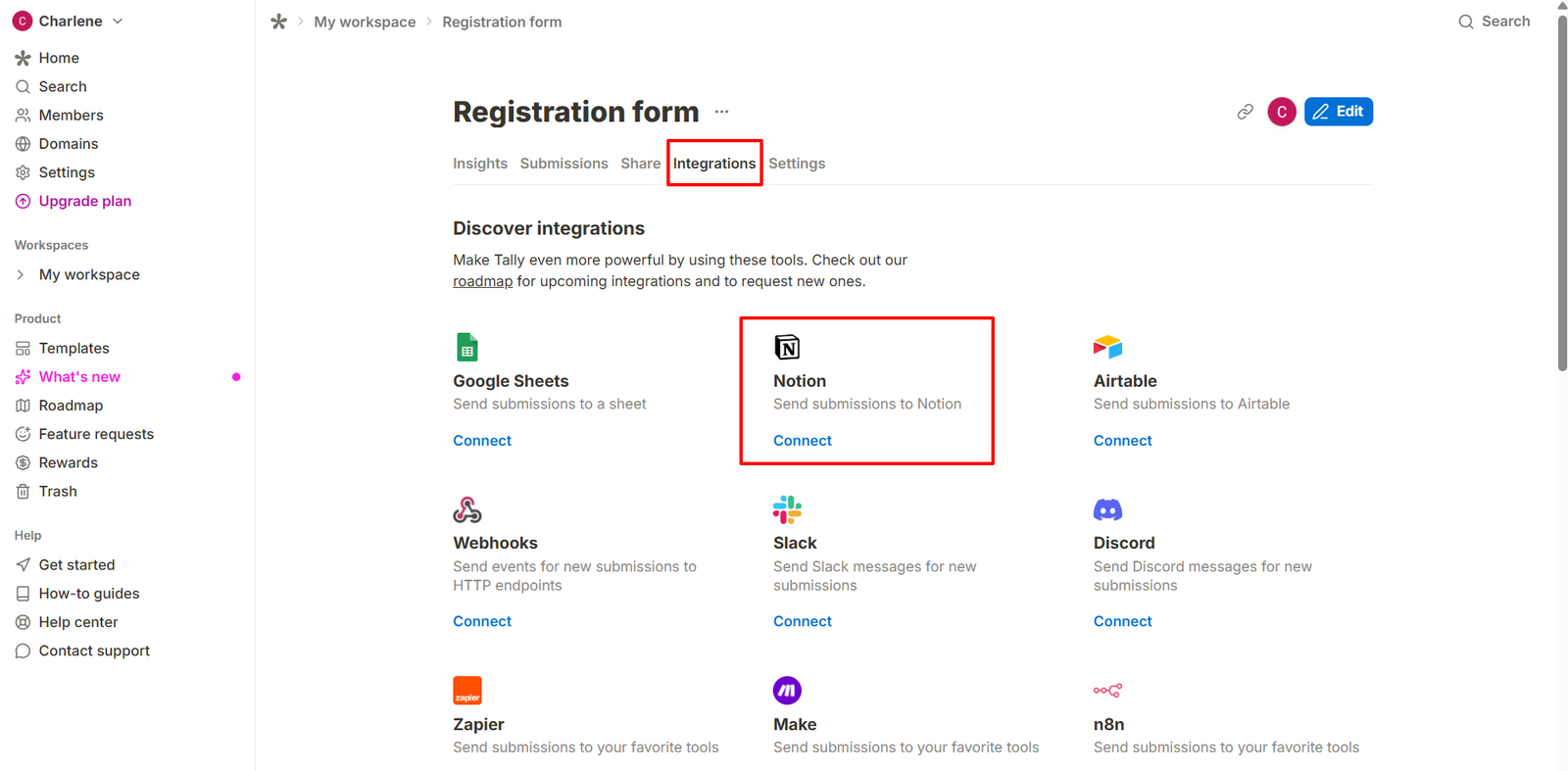
- Go to the Integrations tab
- Click Connect Notion
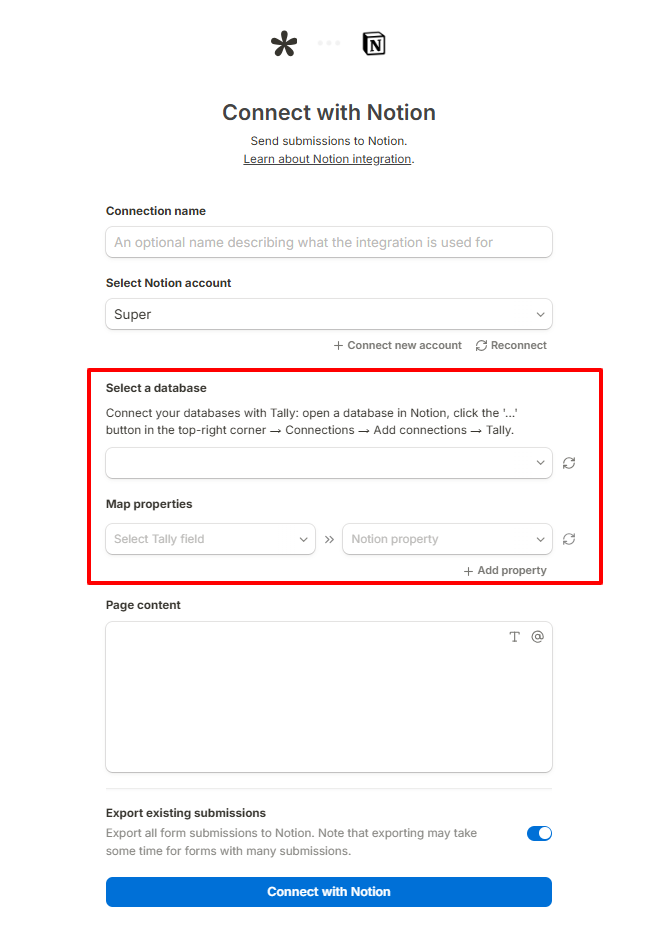
- Select the pages or databases you want Tally to access
- Select the database
- Map the properties
- Connect with Notion
Important Notes for Super Users
- Super does not collect Tally submissions directly, the responses are stored in Notion through the integration
- Your Notion database properties should already exist before connecting Tally
- Formula properties in Notion cannot receive direct input from Tally
- If you rename or remove fields later, you may need to reconnect or remap the integration
- Depending on your Super setup, newly submitted database items may need to meet your filters or published conditions before appearing on the live site