


Let your AI assistant set it up. Connect the Super MCP to Claude, ChatGPT or another assistant and paste this prompt:
Use the Super MCP to set up social sharing and SEO on my Super site [site name].
Follow the guide at https://docs.super.so/help/super-how-tos/how-to-set-up-social-sharing-and-seo-for-your-site
Use [site title], [site description] and [share image] as the defaults.
Then show me the SEO settings of my home page.
Super sites are already search engine optimized (SEO), but they also come with extra tools to help your site rank higher and be found easier
SEO overview for Super sites
It takes a bit of effort to convince search engines that any website should appear in their search results. To make the process easier for you, Super sites are already search engine optimized. They also come with extra tools you can use to help your site rank higher.
⚡
If you want to hide your site from search engines, you can disable search engine indexing from the SEO page in the site dashboard.
Default Sharing and SEO settings
Your Super site will have some SEO settings by default. These are set using the specific areas below, unless you override them with custom settings:
- SEO title (Notion page title)
- SEO description (The first H3 block, text block, or quote block on the page)
- SEO image (Notion page cover)
- Site name (your site name from Settings, sent as
og:site_nameon every page, so use your real brand name)
Super sites come with a lot of other SEO straight out of the box:
- Sitemaps (generated from the pages you add to Super) - paid plan
- Site language feature - all sites
- Open Graph (OG) meta tags for social sharing (controls how your content is displayed when you share a link to it on social media platforms)
- The robots' exclusion standard, also known as robots.txt (helps inform search engine robots which site pages should or shouldn’t be crawled)
Using this tool, you can check how your SEO settings translate meta tags (snippets of text that share data about your page to search engines).
Set custom SEO settings for your pages
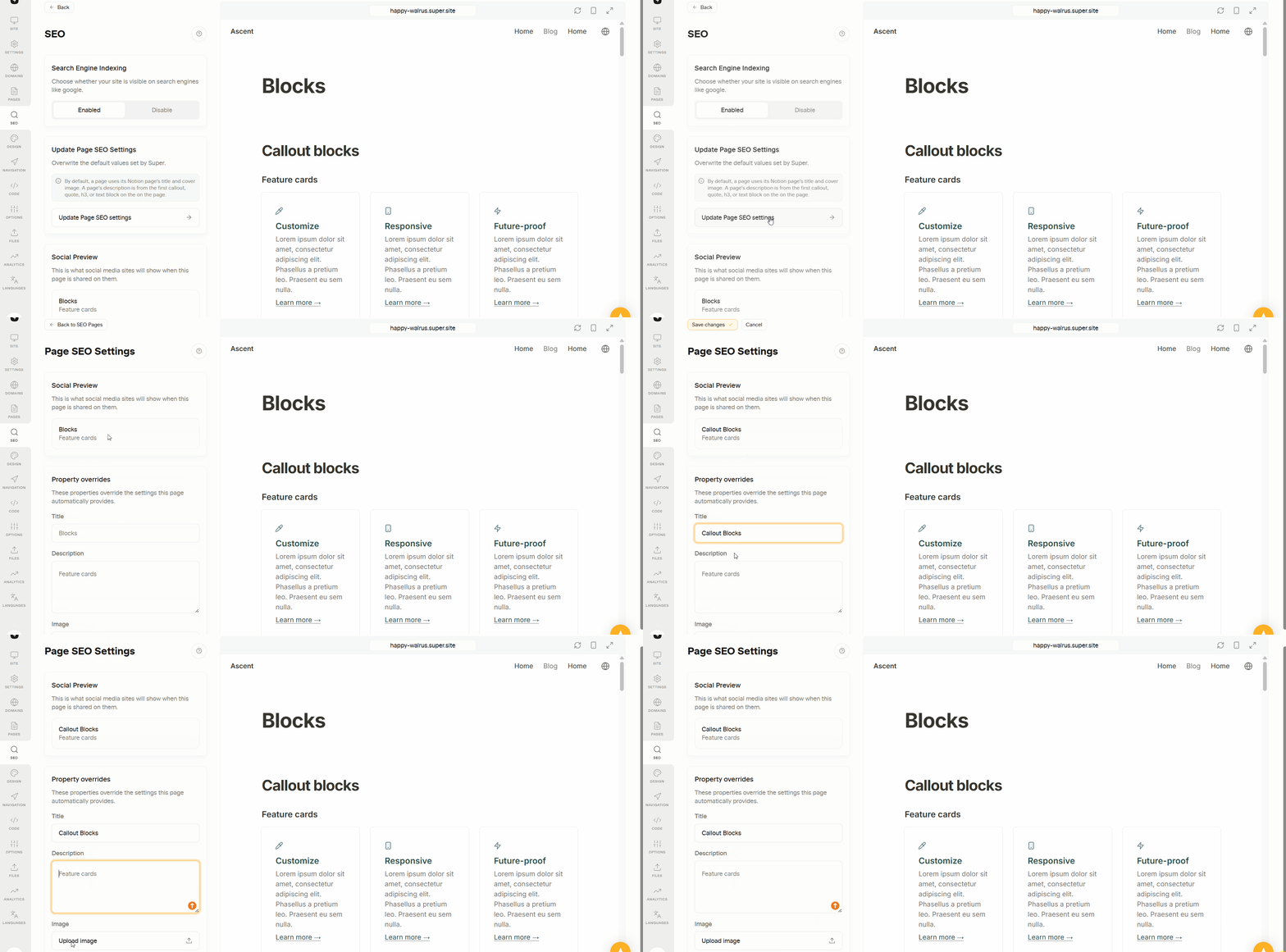
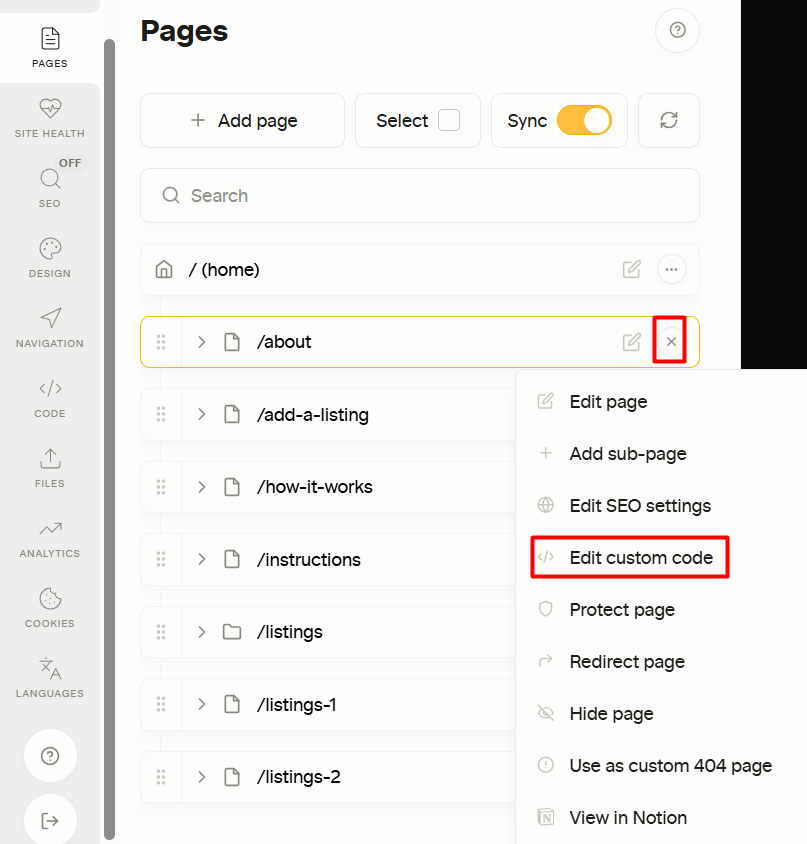
You can override the default SEO and social sharing tags on a per-page basis. Go to Pages in your site editor and click on Edit SEO (🌐 icon) next to the individual page to override its SEO defaults.
Any changes you make to your SEO settings will appear in the preview. Press Save when you have finished editing.
Hide a page from search engines
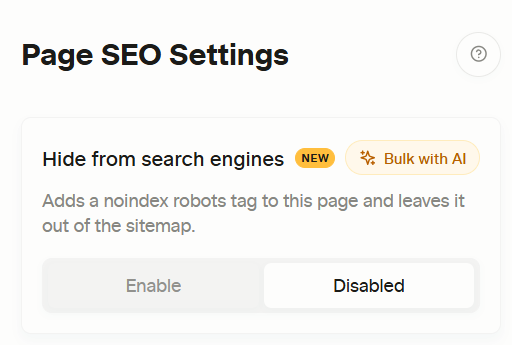
To keep a single page out of search results, open it in Pages, go to the SEO tab and turn on Hide from search engines. Super adds a noindex robots tag to that page and removes it from your sitemap; the rest of your site stays indexed.
Need it on many pages at once? Click Bulk with AI on the same card. Connect Super to Claude, ChatGPT, Grok or Notion AI (how to connect) and ask in one message, for example: “Hide every page under /blog from search engines on my site.”
Pages behind a password or membership can be left out of the sitemap with Hide protected pages from sitemap in Settings → Privacy & access.
Add site title and description
You can add your site title and description (also known as meta description), which can help users decide if they want to click on your site.
Search engines generally display both in search results, but be aware Google may also use a snippet from your first paragraph on the page instead of the added description.
For best SEO practices:
- Use a short title (between 50-60 characters) descriptive of your page
- Use a description with a maximum of 155-160 characters to summarize what your page is about
Upload site thumbnail image
You can upload an image that gets displayed when you share the link to your site on social media platforms under Site Image.
To optimize your image:
- Name your image file using descriptive words, separated by hyphens
- Use an image relevant to your page content
Submit your site to Google Search Console
In order to index your website, Google requires a sitemap file. To make it easy, Super has already created it for you. To make sure Google understands your site's structure, simply submit it to Google Search Console:
- Open up Google Search Console and enter your domain
- Add a TXT record to your DNS to verify that you are indeed the owner of the domain
- Select
Sitemapson the Menu tab on the left - Add a new sitemap by adding the URL:
yourwebsite.com/sitemap.xml
Note: You will need a paid subscription to take advantage of the automatic sitemap generation.
That’s all! In no time at all, your site should appear in Google Search results if you follow these steps.
⚡
For more tips on improving your site's SEO, check out our guide here.