


Let your AI assistant walk you through it. Connect the Super MCP to Claude, ChatGPT or another assistant and paste this prompt:
Use the Super MCP to look at my Super site [site name] and explain how to transfer it to [new account email or team].
Read https://docs.super.so/help/super-how-tos/transferring-a-site-to-another-account and explain it for my site step by step.
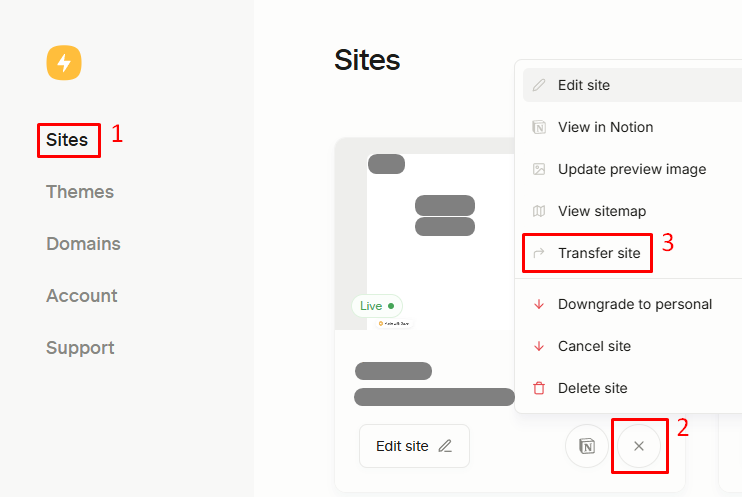
Show me where in the dashboard I start the transfer.
If you’d like to transfer your site (including the plan) from one account to another, that’s possible.
Before you start
- Start the transfer from the account that owns the site now. Sign in to the original account (with the same login method you always use, e.g. Google) and you will see the site on Sites. A new, empty account has nothing to transfer.
- Each Google profile is a separate Super account. If you pick a different Google profile on Google's account chooser, Super signs you in to (or creates) a different account. That is why the site seems to be missing: it is still in the original account.
- The site stays the same. Pages, design, settings, the Notion connection and the domain move with it; only the owner changes.
How to transfer the site
- Go to your Super dashboard → Sites
- Click on the three-dot icon on your site
- Select "Transfer site":
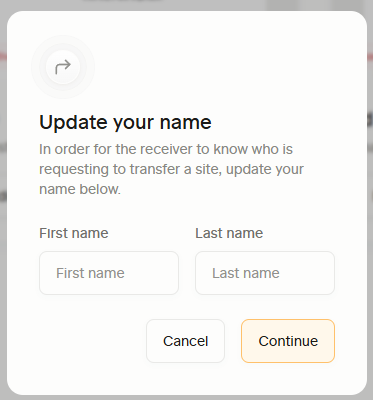
- Update your name for the request:
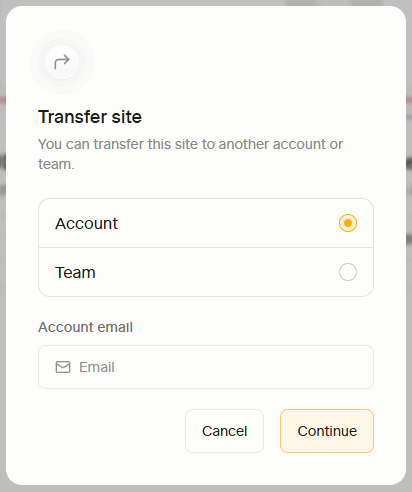
- Enter the email address of the account to which you’d like to transfer the site, including the plan (or you can transfer it to the other team in your account):
- Confirm the transfer.
- Once the recipient accepts the transfer, the site - including the subscription - will be transferred to their account.
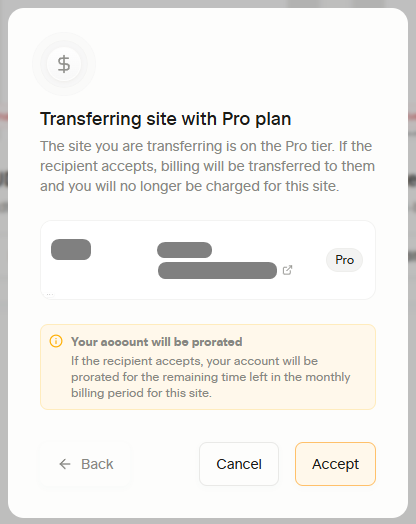
Please be reminded that the recipient is required to accept the site with plan for future billings.
To accept, the recipient signs in to the receiving account (the email you entered) and accepts the transfer there. On a paid plan they add a payment method, and billing continues in their account.