


Let your AI assistant set it up. Connect the Super MCP to Claude, ChatGPT or another assistant and paste this prompt:
Use the Super MCP to set the page [404 page title] as the custom 404 page on my Super site [site name].
Follow the guide at https://docs.super.so/help/super-how-tos/using-custom-404-page
If a step has to be done in Notion, do it with the Notion connector or tell me exactly what to change.
Then show me a preview of a page that does not exist.
You can now designate any Notion page in your Super site as a custom 404 error page, giving you full creative control over what visitors see when they hit a dead end. Keep visitors engaged with a branded, on-theme experience rather than a generic error page.
STEP 1
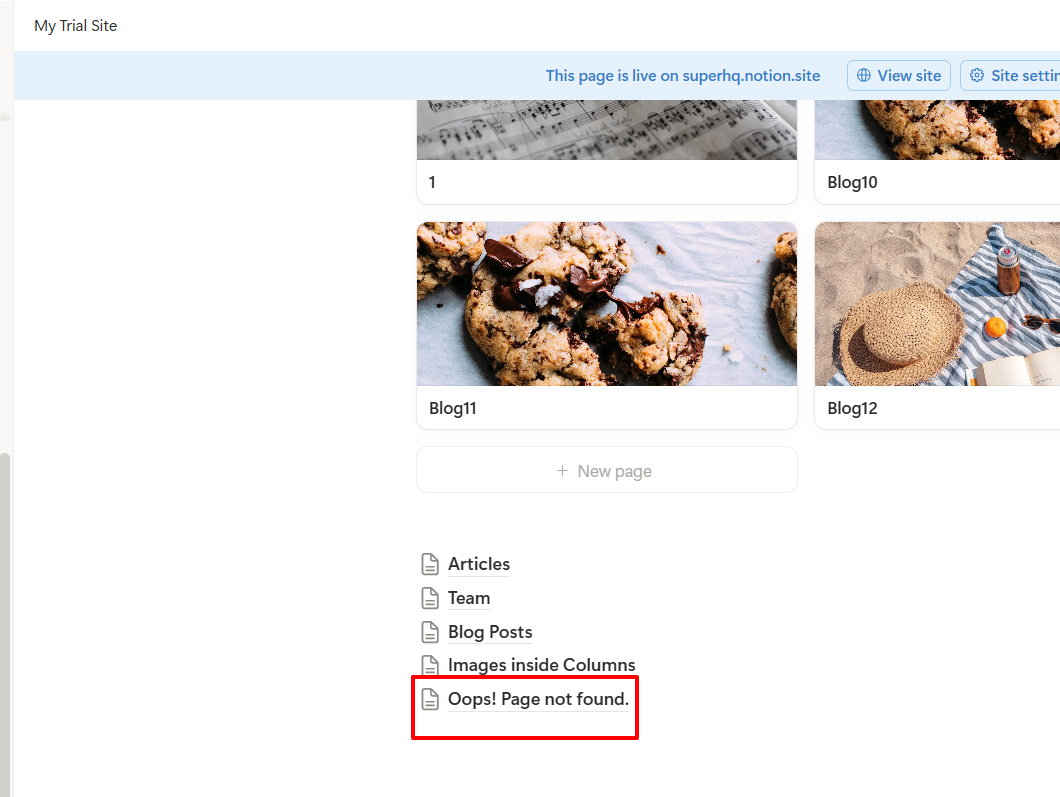
- Create a page and name it as your custom 404.
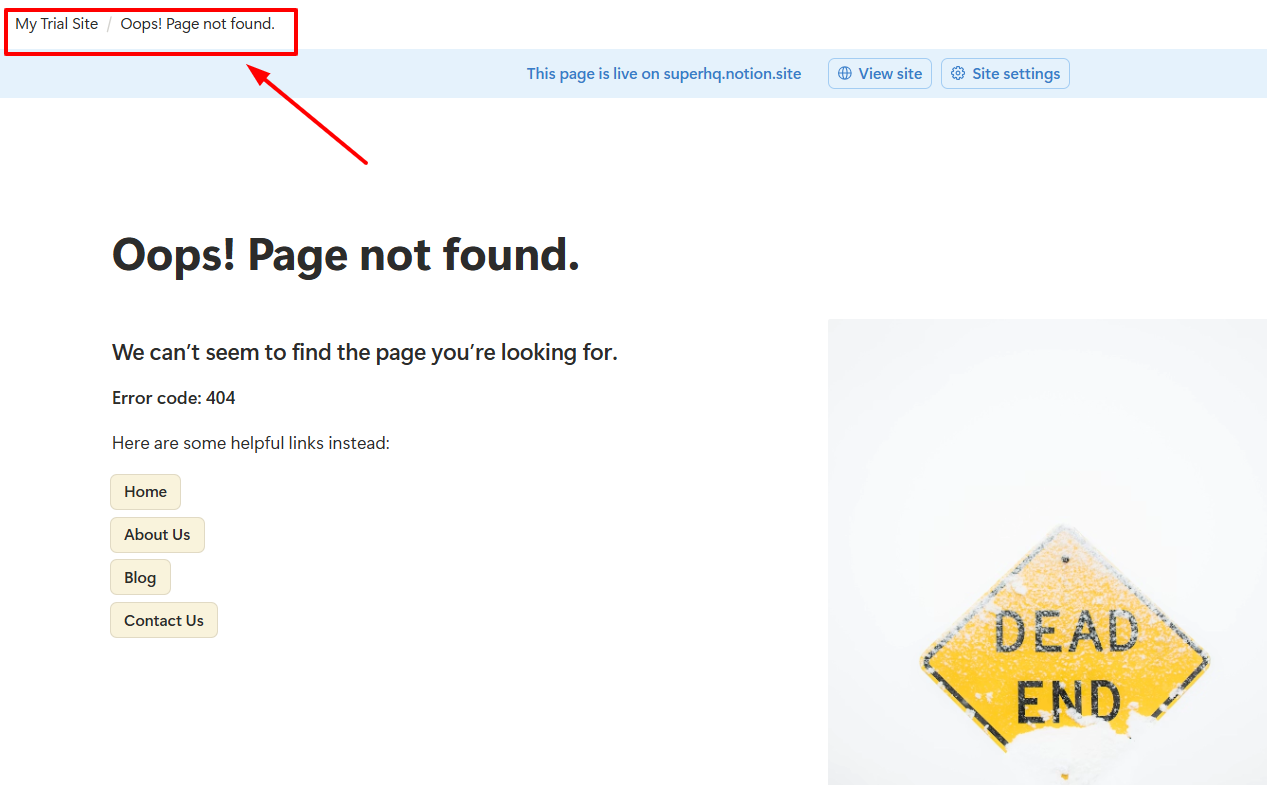
- Make sure the said page is set as subpage. You'll notice it on the Path Below. The page must be included in your site's structure, see
 How to fix the correct page structure.
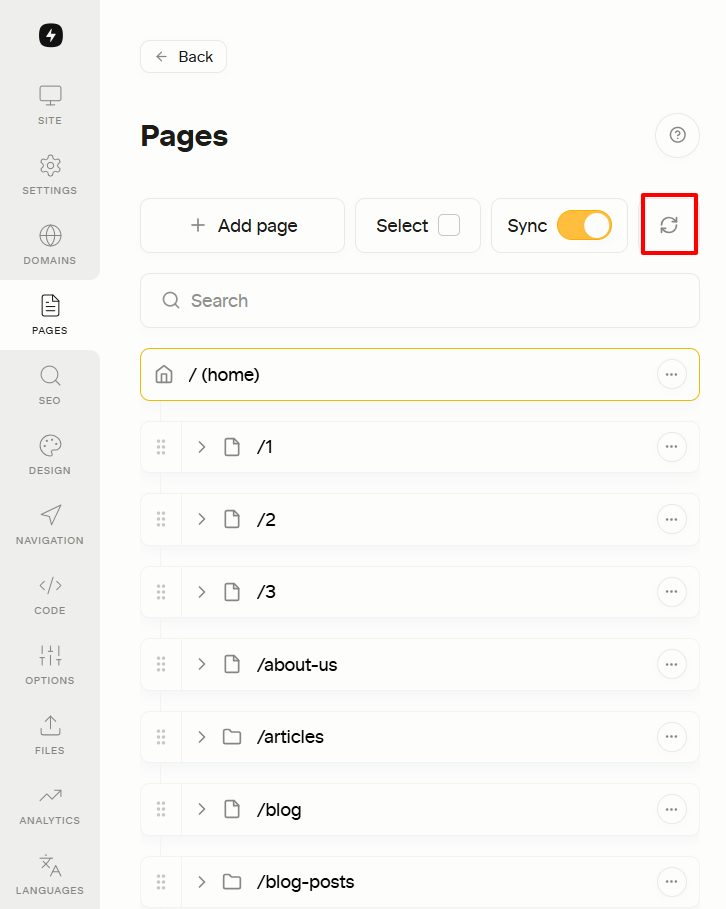
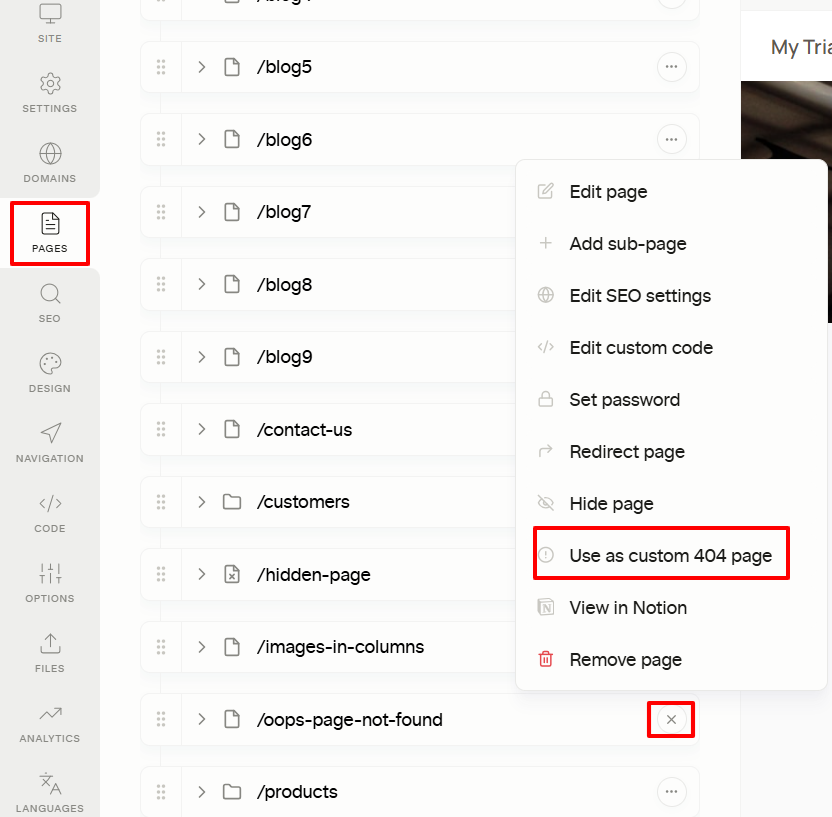
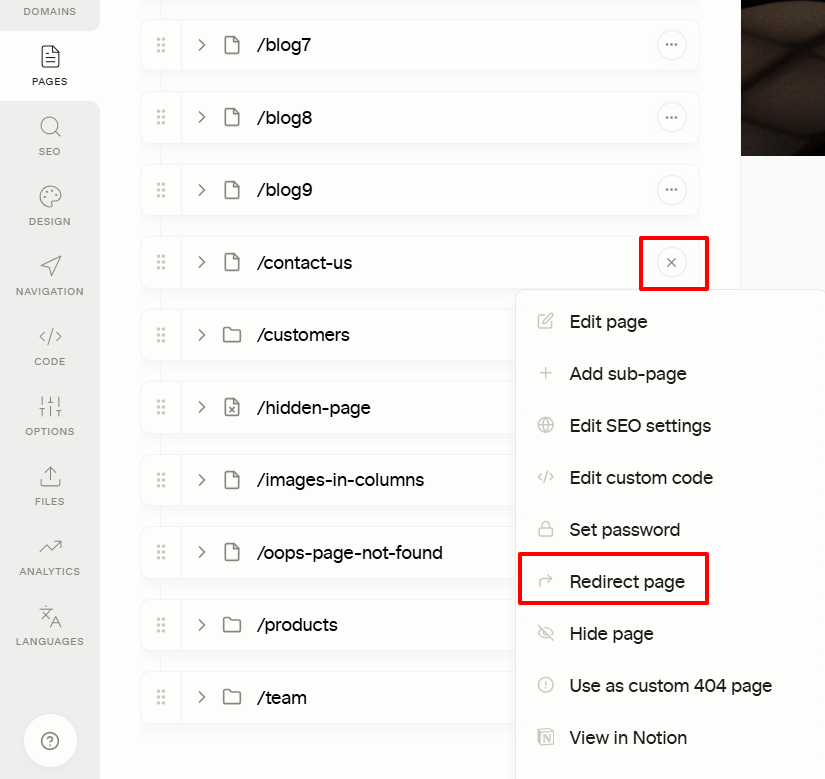
- Go to your Super Pages, make sure to refresh the PAGES section. Look for the 404 page
- Click the three-dot button and choose Use as Custom 404 Page.
- For other pages, you can just redirect it to the said custom 404 page. Page redirects are available on Personal and Pro plans.
External Links and Behavior
If your custom 404 page includes links to external websites (such as social media pages, support tools, or documentation), these links should open in a new tab or window (target="_blank" behavior).
This ensures that visitors do not lose their place on your site when they are redirected to external resources.
Internal links within your Super site will continue to work normally and open within the same tab as expected.