

Tell Super in plain words what you want and watch your site change: design, content, custom code, SEO and settings, right in the dashboard.
The AI chat is built into the Super dashboard at app.super.so. It works on the site you have open, next to a live preview, so you see every change a moment after you ask. There is nothing to install or connect.
Where to find it
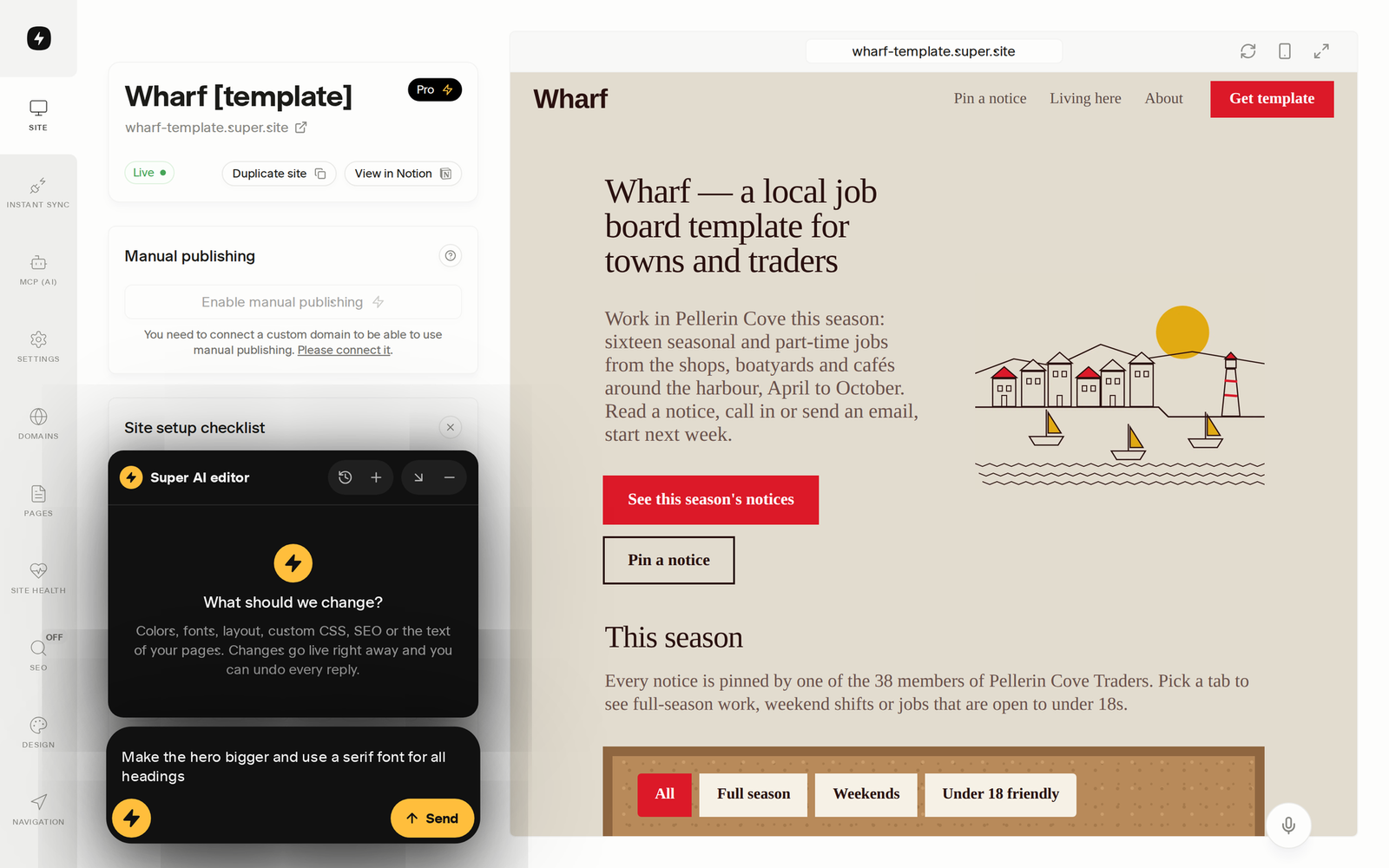
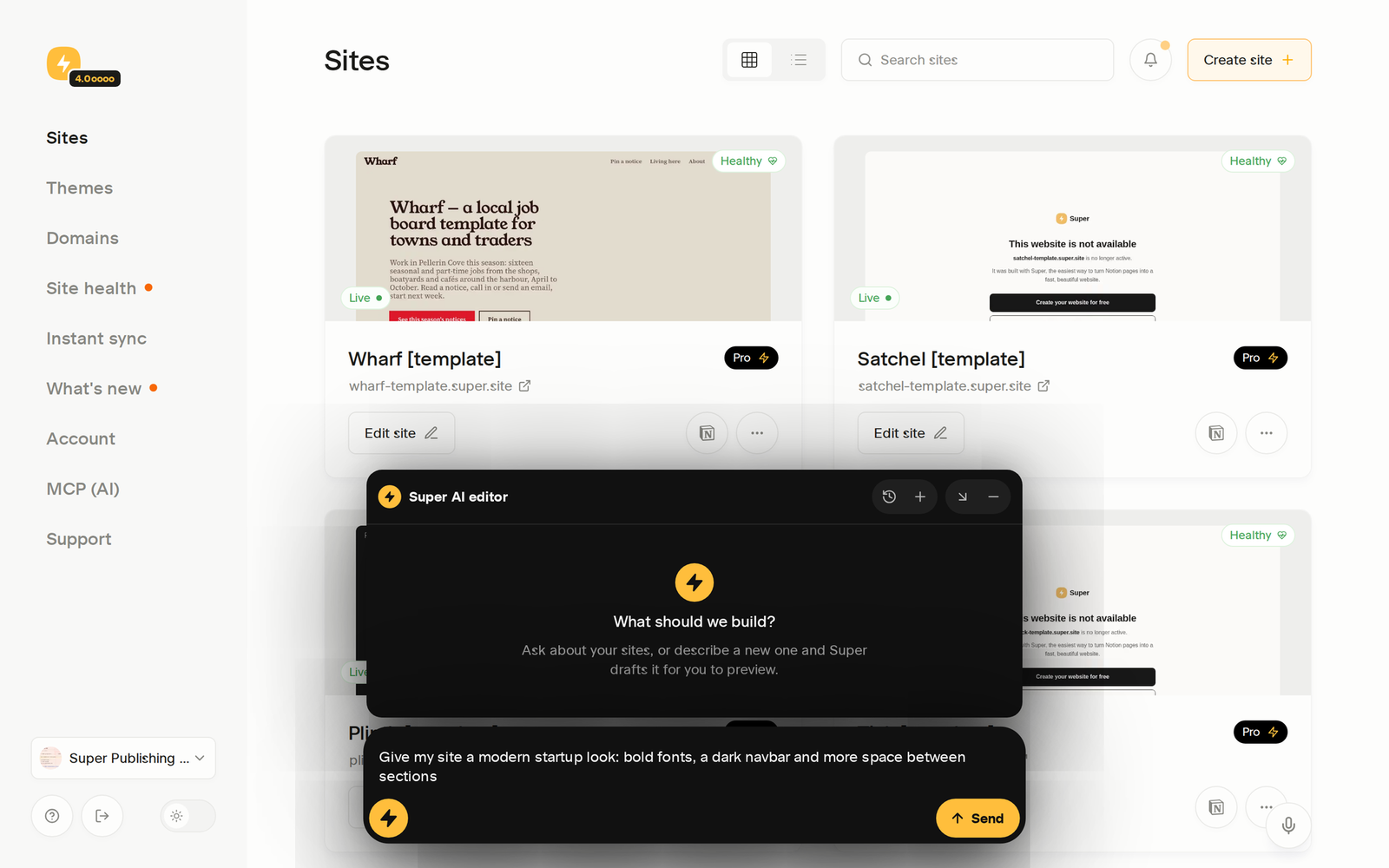
On site pages that show the live preview (Site, Pages, Design, Navigation, Code and similar), the chat sits in the bottom-left corner, next to the preview. Everywhere else in the dashboard it waits at the bottom center. Click it, type what you want and press Send. You can write in any language.
What you can do
- Design with words: colors, fonts, layout, navbar, footer, or one section of one page. "Give my site a modern startup look: bold fonts, a dark navbar and more space between sections."
- Borrow a style: paste a link to a site or a Super template and ask for the same feel. The chat reads the page and brings its style to your own content.
- Add custom code without writing it: "Add a reading progress bar to my blog posts." The chat writes the CSS or the snippet and puts it on your site.
- Edit your content in Notion: "Rewrite my About page to sound friendlier" or "Add a Pricing page with three plans." The chat changes your Notion pages and refreshes the site, so the content stays yours in Notion.
- Set SEO and settings: page titles and descriptions for every page in one go, navigation, site options.
- Ask how Super works: what is new, whether Super can do something, and how. Ideas for new features go to our team once you say yes.
Try it
Each link opens the chat in your dashboard with the prompt ready. Nothing is sent until you press Send.
- Give my site a modern startup look
- Add a reading progress bar to my blog posts
- Rewrite my About page to sound friendlier
- Write SEO titles and descriptions for all my pages
Most docs pages also start with a Let AI do it for you card: click Do it in Super and the chat follows that page on your own site.
Good to know
- Changes go live right away. There is no draft and no Apply button. Don't like the result? Click Undo and the chat takes its last reply back.
- Connect Notion to edit content. Design, code and SEO work without it. To let the chat change text and pages, click Connect Notion in the chat or in Account settings. If your pages live in another Notion workspace, connect that account under Site settings › AI editor › Use another account.
- New pages must be public in Notion. Notion has no way to publish a page for us: when the chat adds a new root page, open it in Notion and click Share › Publish › Publish to web.
- Custom code needs a plan that includes it. The chat saves code on every plan, but the live site shows it only on plans with custom code.
- It only works on your Super sites. The chat builds and changes your sites and answers questions about Super. It does not write unrelated text or programs.
- Usage depends on your plan. Every plan includes the AI chat, with more usage on higher plans (see below). If you reach the limit and want to keep going, connect your own assistant such as Claude or ChatGPT through Super MCP: it can do the same things from your assistant's chat.
Usage by plan
Plan | AI chat usage |
Free | Included |
Personal | 5× more than Free |
Pro | 5× more than Personal (25× more than Free) |
Custom solutions | Upon request |
See all plans on the pricing page.