

Notion's video block shows as a black box with square corners until someone presses play. This recipe gives every video on your Super site a cover image in your colours and rounded corners like the rest of your site. Your AI assistant picks a good frame from the video, designs the cover, adds the video and the cover to your Notion page and the small style and script to your site, then checks the live page.
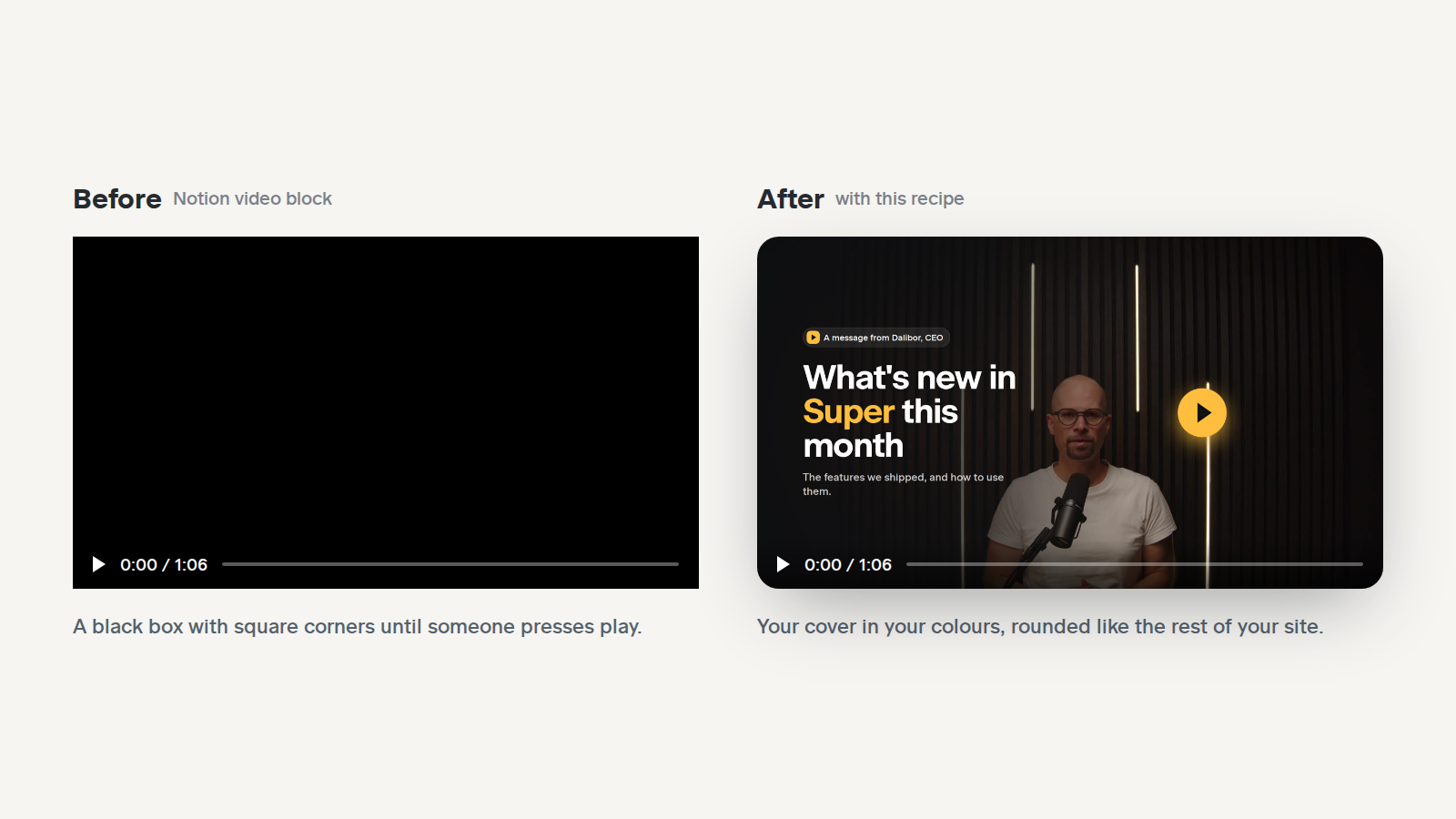
It works with one simple rule: the image directly under a video is that video's cover. Add a video later, put an image under it, and it gets a cover too.

Before you start
- A Super site on a paid plan: the rounded corners and the cover use custom code, which the live site shows on paid plans.
- Super and Notion connected to your assistant: see Connect your assistant.
- For a cover made from a video frame: Claude Code, or Claude with code execution (the skill uses ffmpeg and a headless browser). Without it, the skill asks you for a cover image or gives you a prompt for an image tool.
Download
The zip holds the skill for Claude: the instructions, the cover template, the style, the script and a prompt for making the cover with an image tool.
Install in your AI assistant
Claude
- Settings → Capabilities → Skills → Upload skill, choose super-video-cover.zip. In Claude Code, unzip it into ~/.claude/skills/.
- Settings → Connectors: add Super (https://mcp.super.so/mcp) and Notion.
- Ask: "Put this video on my About page with a nice cover" and attach the video, or "Give the video on my home page a cover."
Other assistants
Connect Super (https://mcp.super.so/mcp) to any assistant that supports custom MCP connectors and give it this prompt. It reads this page and follows it:
Give the videos on my Super site a cover image and rounded corners.
Follow the recipe at https://docs.super.so/mcp/recipes/video-cover.
What the skill does
- Reads your site's accent colour, heading font and the corner radius of your cards, and the page's headline.
- Picks a calm frame of the video: eyes open, mouth closed, nothing important cut off.
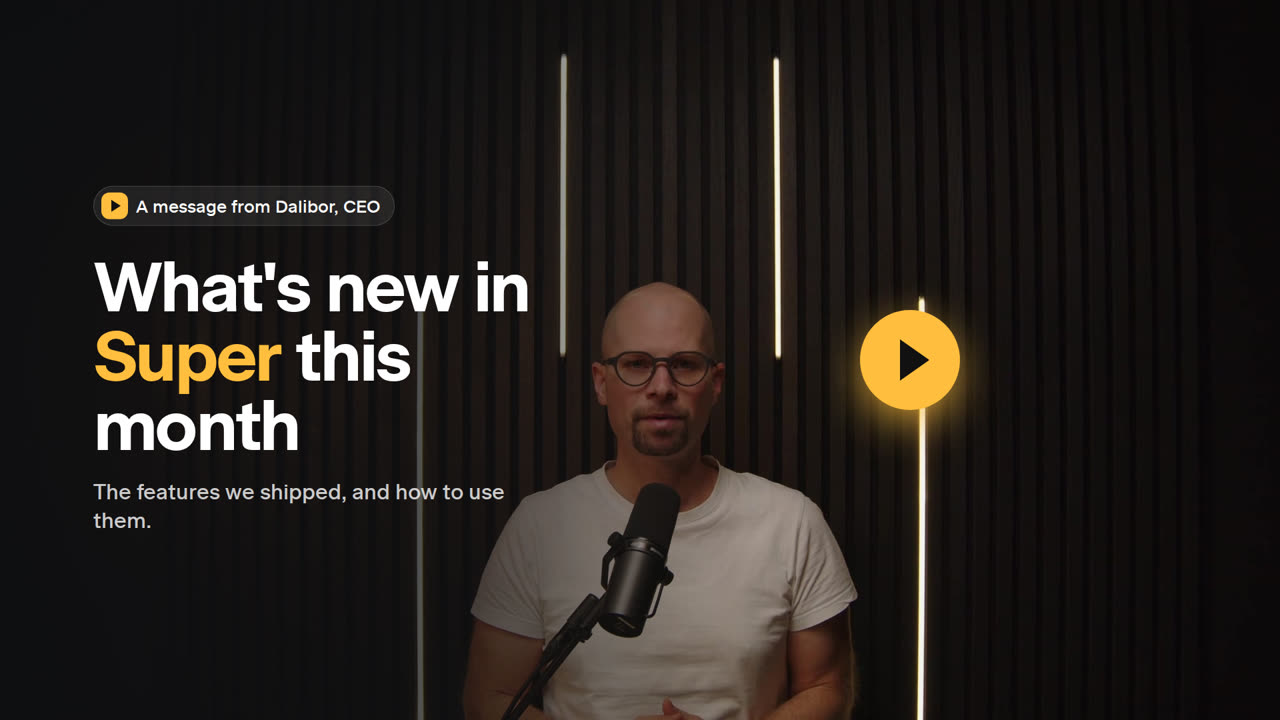
- Designs the cover: a small label ("A message from Anna, founder"), a short headline with your accent colour, one line under it and a play button, on the calmer side of the frame.
- Adds the video and, right under it, the cover image to your Notion page (videos over 20 MB are compressed first).
- Adds the style and the script to your site once, then refreshes the page and checks it on desktop and phone.
Example
A one-minute talking-head video from our studio. The skill took the frame at 1.2 seconds, put the text on the dark left side and the play button on the right, in Super's amber:
Good to know
- The cover only changes what visitors see before they press play. The video file stays as it is, and it now loads only when someone presses play, so the page is faster.
- To show a normal image right after a video, put any other block (even an empty line) between them.
- Every change is versioned: to undo it, ask your assistant to restore the previous version of your custom code.

Still evolving. The Super MCP server, Notion and the AI assistants are all changing fast, so you may run into limits. Tell us through the AI chat in your Super dashboard: we want to know, and if there is a workaround, we will help you with it.