


Let your AI assistant install it. Connect the Super MCP to Claude, ChatGPT or another assistant and paste this prompt:
Use the Super MCP to add the Database view picker to my Super site [site name].
Follow the installation instructions at https://docs.super.so/snippets-and-custom-code/database-view-picker and keep all existing code.
Set the active tab color to [your brand color].
Then show me a preview of [a page with a database that has several views].
This snippet transforms the default visual styles for switching between different database views. By default database views uses a dropdown, this snippet transforms that into a series of horizontal tabs as seen below (the picker will revert to a dropdown on mobile).
All

NASA

Japanese prints

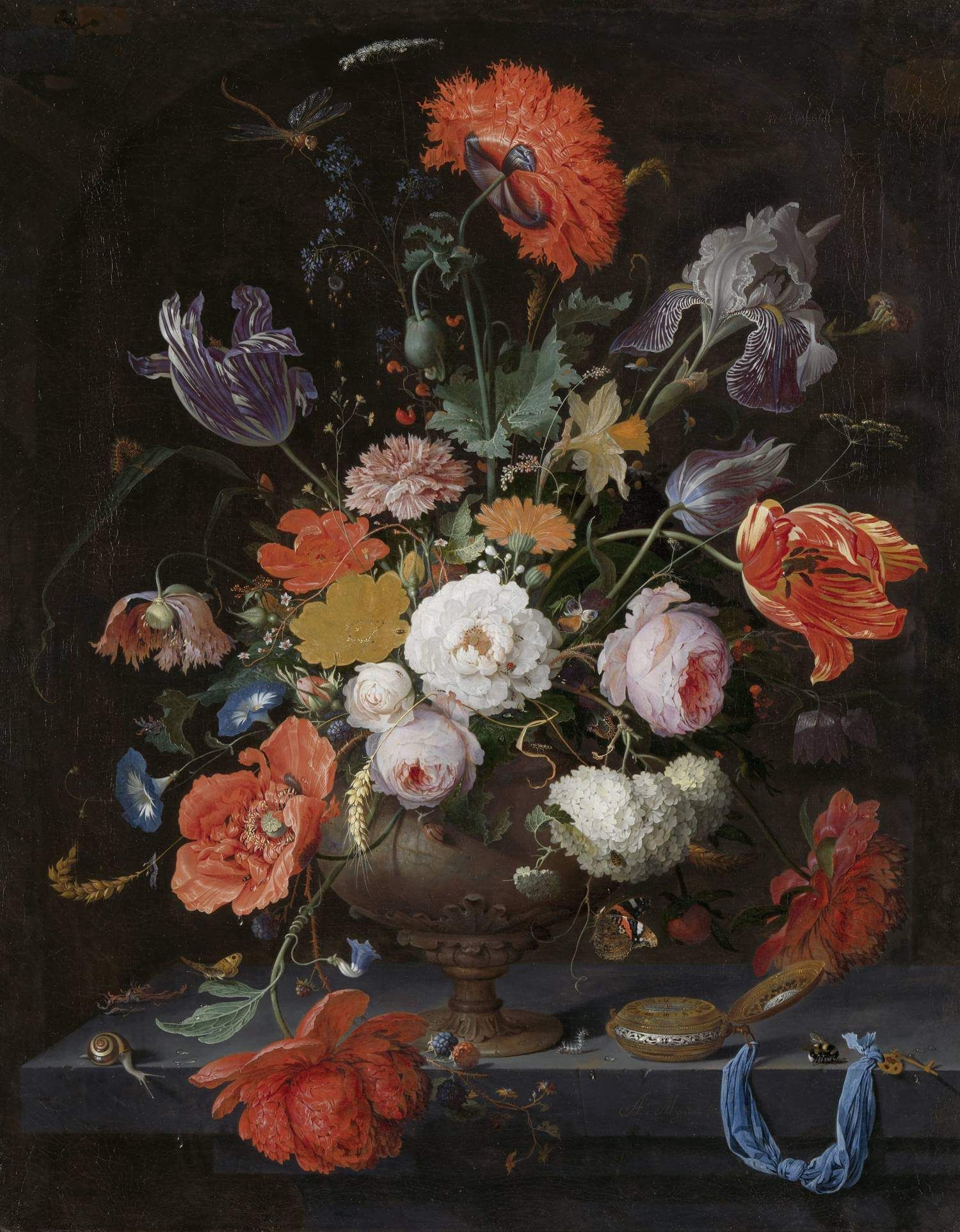
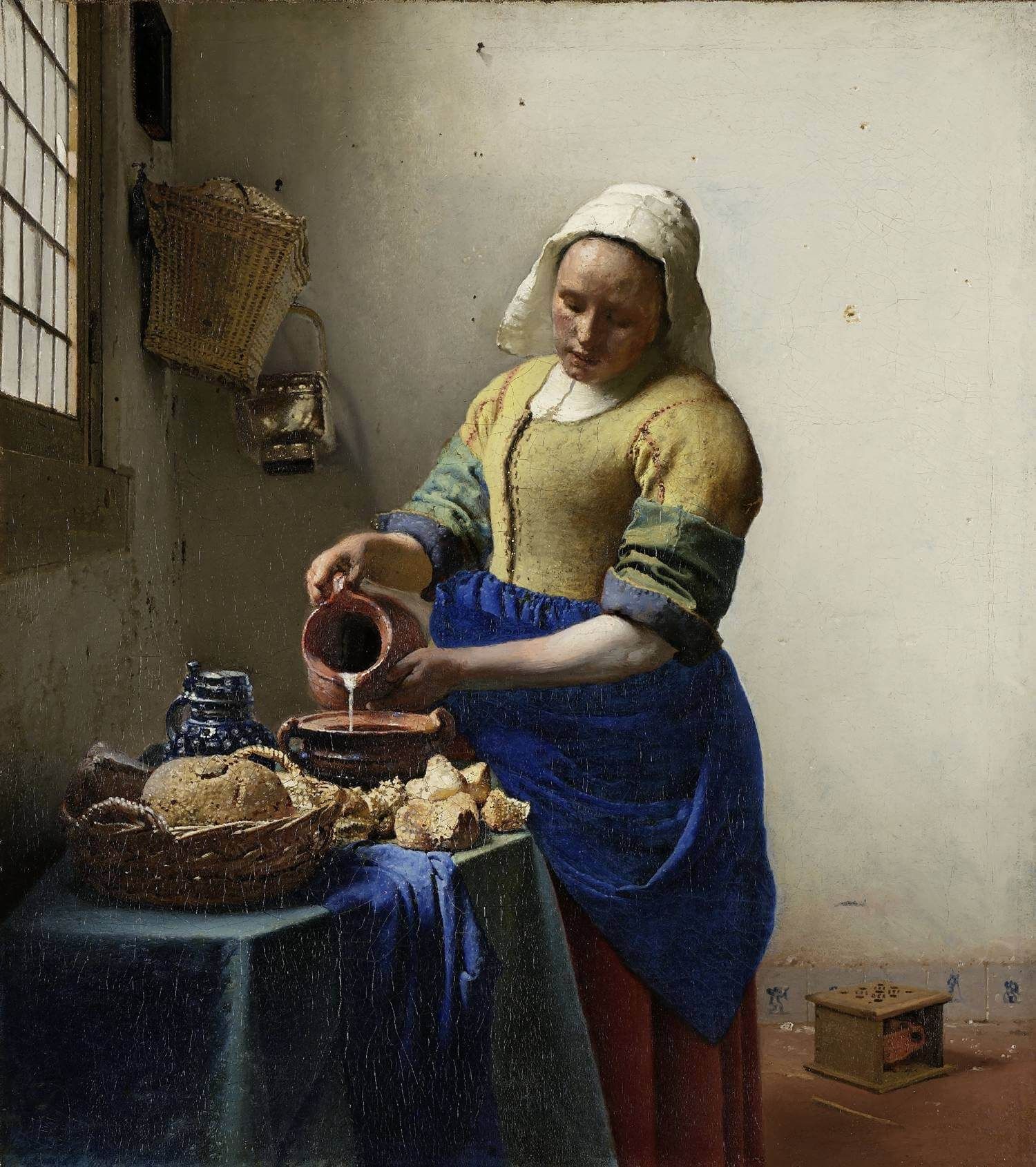
Rijksmuseum




Installation instructions
- Open your site in the Super Dashboard
- Open the ‘Code’ page
- In the ‘Head’ tab, paste the following snippet:
- If you want to customize the colors, in the ‘CSS’ tab, paste the following snippet:
- You can then replace the CSS variables
var(--color-ui-hover-bg)with RGB or HEX color codes
<link rel="stylesheet" href="https://sites.super.so/snippets/v2/view-picker.css">:root {
--picker-active-bg-color: var(--color-ui-hover-bg) !important;
--picker-active-text-color: var(--color-text-default) !important;
--picker-active-border-color: var(--color-ui-hover-bg) !important;
--picker-border-color: var(--color-border-default) !important;
--picker-text-color: var(--color-text-gray) !important;
--picker-border-radius: var(--border-radii-layout) !important;
--picker-hover-bg-color: var(--color-ui-hover-bg) !important;
--picker-hover-text-color: var(--color-text-default) !important;
--picker-hover-border-color: var(--color-border-default) !important;
}